> ## Documentation Index
> Fetch the complete documentation index at: https://narev.ai/docs/llms.txt
> Use this file to discover all available pages before exploring further.
# OpenAI
> Use an OpenAI administrator API key to pull usage and billing data into Narev Self-Hosted and unify it with cloud spend in FOCUS format.
## Prerequisites
* Active OpenAI account with API access
* Administrator permissions in your OpenAI organization
* Administrator API key with billing access permissions
* Optionally: Organization ID (for accounts with multiple organizations)
## Creating an administrator API key
### 1. Access OpenAI Platform
1. Go to [platform.openai.com](https://platform.openai.com)
2. Sign in to your OpenAI account
3. Ensure you have administrator permissions in your organization
### 2. Generate administrator API key
1. In the left sidebar, select **API keys**
2. Click **Create new secret key**
3. In the key creation form:
* **Name**: Provide a descriptive name (for example, "NarevAI Billing Access")
* **Permissions**: Select **All** or **Custom** with permissions for:
* `organization.billing.read`
* `organization.usage.read`
* **Project**: Choose the appropriate project or leave as "All projects"
**Admin key requirements**: keys with billing access use the format `sk-*` with extended
permissions. Regular `sk-*` keys without administrator permissions won't work for billing data access.
### 3. Copy the key
1. Copy the key immediately because the platform shows it only once
2. Save it in a secure location
3. The key should have the format: `sk-admin-xxxxxxxxxxxxxxxxxxxxxxxxxxxxxxxxxxxxxxxx`
## Adding OpenAI Provider in NarevAI
### Step 1: Navigate to Connect
1. In the NarevAI sidebar, under **Data Connections**, click **Connect**
2. You'll see the "Provider Integrations" page with available providers
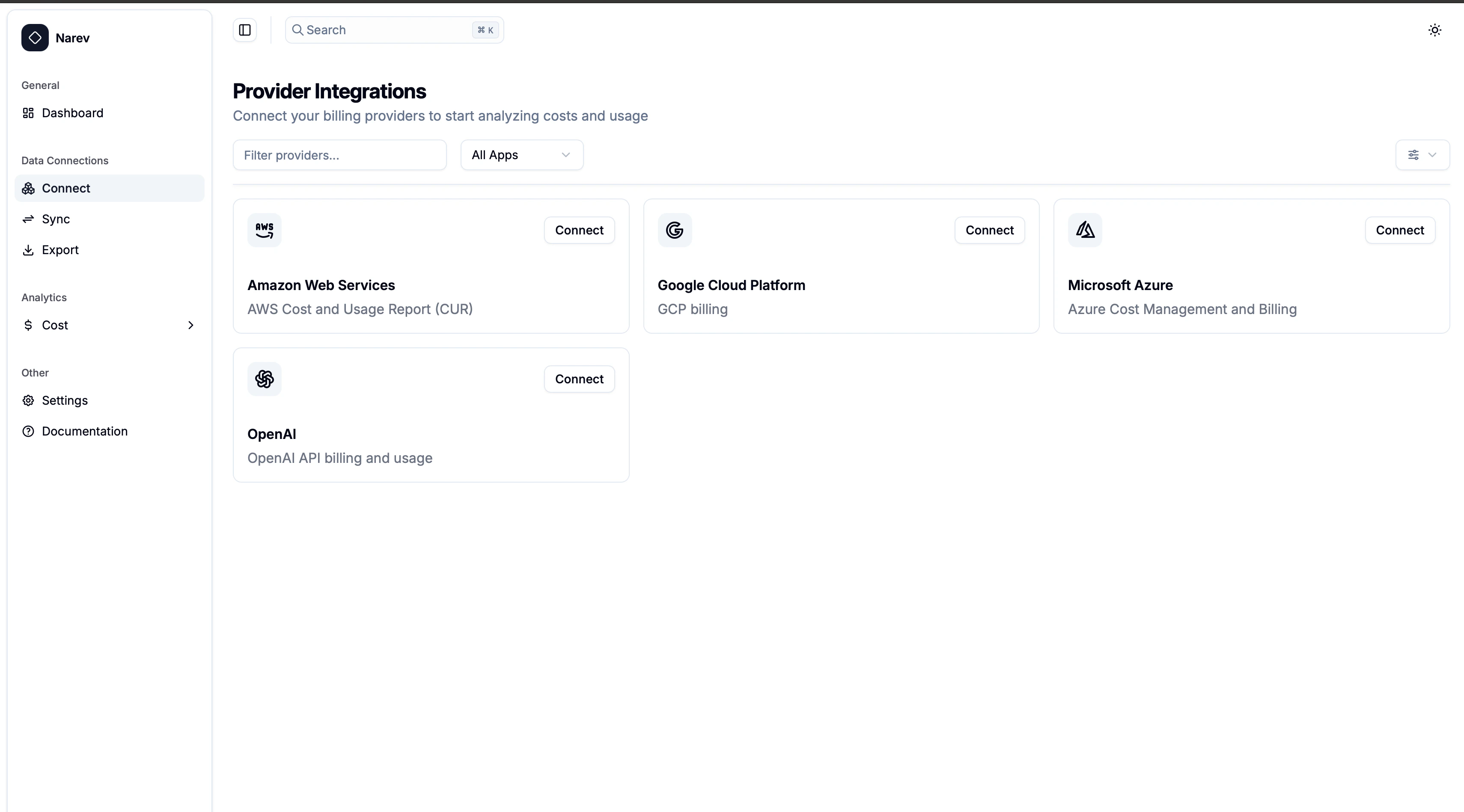 ### Step 2: Select OpenAI Provider
1. Find the **OpenAI** card in the provider grid
2. Click the **Connect** button on the OpenAI card
3. The OpenAI configuration dialog opens
### Step 2: Select OpenAI Provider
1. Find the **OpenAI** card in the provider grid
2. Click the **Connect** button on the OpenAI card
3. The OpenAI configuration dialog opens
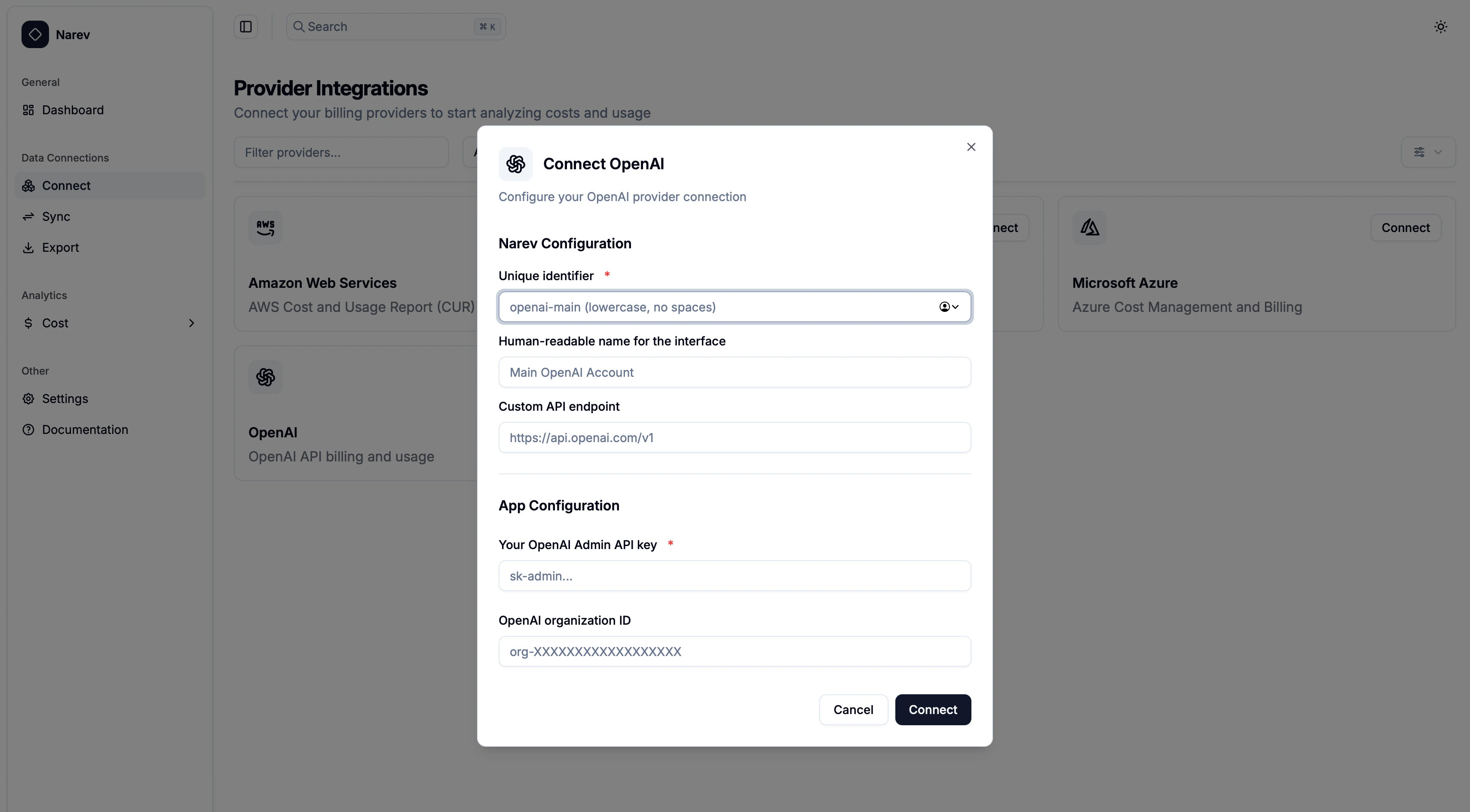 ### Step 3: Configure OpenAI Provider
#### Narev configuration
**Provider Name** ✅ *Required*
* Unique identifier (for example, `openai-main`, `company-openai`)
* Format: lowercase letters, numbers, hyphens, underscores only
**Display Name** (Optional)
* Human-readable name (for example, `Main OpenAI Account`, `Company OpenAI`)
* Shown in the interface
#### App configuration - OpenAI credentials ✅ *Required*
**Token** ✅
* Your OpenAI administrator API key (format: `sk-admin-xxxxxxxxxxxxxxxxxxxxxxxx`)
* Password field with show/hide toggle
#### Provider-specific configuration
**API Endpoint** (Optional)
* Custom API endpoint (default: `https://api.openai.com/v1`)
* Use only for custom deployments or proxies
* **Important**: Proxy must provide usage data in OpenAI-compatible format
**Organization ID** (Optional)
* OpenAI organization identifier (format: `org-XXXXXXXXXXXXXXXXXX`)
* Leave empty to use your default organization
### Step 4: Connect Provider
1. Review all configuration settings
2. Click the **Connect** button
3. NarevAI tests the connection to OpenAI API
4. If successful, NarevAI adds the provider and marks it as "Connected"
5. You can now sync billing data from this OpenAI account
**Connection Test includes:**
* API key validity check
* Billing endpoints access verification
* Organization permissions verification (if specified)
## Configuration examples
### Basic setup
```text theme={null}
Provider Name: openai-main
Display Name: Main OpenAI Account
Token: sk-admin-xxxxxxxxxxxxxxxxxxxxxxxxxxxxxxxxxxxxxxxx
```
### Multi-Organization Setup
```text theme={null}
Provider Name: openai-prod
Display Name: Production OpenAI Organization
Token: sk-admin-xxxxxxxxxxxxxxxxxxxxxxxxxxxxxxxxxxxxxxxx
Organization ID: org-ABC123DEF456GHI789
```
### Custom Endpoint Setup
```text theme={null}
Provider Name: openai-proxy
Display Name: OpenAI via Corporate Proxy
Token: sk-admin-xxxxxxxxxxxxxxxxxxxxxxxxxxxxxxxxxxxxxxxx
API Endpoint: https://api-proxy.company.com/openai/v1
```
### Common Test Results
#### Success Response
```text theme={null}
Successfully connected to OpenAI API
Endpoint: https://api.openai.com/v1
Organization: org-ABC123DEF456GHI789
```
#### Authentication Failed
```text theme={null}
Authentication failed - please check your API key
```
**Solution**: Verify your API key is correct and has administrator permissions
#### Connection Failed
```text theme={null}
Connection failed with status 403
```
**Solution**: Ensure your API key has billing access permissions
## Supported Features
The OpenAI provider supports:
* ✅ Usage data by model
* ✅ Usage data by API key
* ✅ Daily usage aggregation
* ✅ Organization-level data
* ✅ Custom API endpoints
## Troubleshooting
### Invalid API Key Format
* Ensure your key starts with `sk-admin-` or has administrator permissions
* Regular `sk-` keys without billing access do not work
### Organization Access Issues
* Verify you're a member of the specified organization
* Check that the organization ID is correct (starts with `org-`)
* Ensure your API key has access to the organization
### Network/Endpoint Issues
* Verify the API endpoint URL is correct
* Check if your network allows access to OpenAI's API
* For corporate networks, you may need to use a proxy endpoint
### Permission Errors
* Confirm your API key has `organization.billing.read` permissions
* Ensure you have administrator role in the OpenAI organization
* Some billing data may require higher permission levels
## Data Collection
Once configured, the OpenAI provider will collect:
* Usage metrics: Token consumption, request counts, model usage
* Billing data: Costs, usage charges, credit consumption
* Organization data: Multi-organization billing breakdown
* Time-series data: Daily aggregated metrics
Data collection runs automatically based on your configured schedule and appears
in the NarevAI dashboard after the first successful sync.
### Step 3: Configure OpenAI Provider
#### Narev configuration
**Provider Name** ✅ *Required*
* Unique identifier (for example, `openai-main`, `company-openai`)
* Format: lowercase letters, numbers, hyphens, underscores only
**Display Name** (Optional)
* Human-readable name (for example, `Main OpenAI Account`, `Company OpenAI`)
* Shown in the interface
#### App configuration - OpenAI credentials ✅ *Required*
**Token** ✅
* Your OpenAI administrator API key (format: `sk-admin-xxxxxxxxxxxxxxxxxxxxxxxx`)
* Password field with show/hide toggle
#### Provider-specific configuration
**API Endpoint** (Optional)
* Custom API endpoint (default: `https://api.openai.com/v1`)
* Use only for custom deployments or proxies
* **Important**: Proxy must provide usage data in OpenAI-compatible format
**Organization ID** (Optional)
* OpenAI organization identifier (format: `org-XXXXXXXXXXXXXXXXXX`)
* Leave empty to use your default organization
### Step 4: Connect Provider
1. Review all configuration settings
2. Click the **Connect** button
3. NarevAI tests the connection to OpenAI API
4. If successful, NarevAI adds the provider and marks it as "Connected"
5. You can now sync billing data from this OpenAI account
**Connection Test includes:**
* API key validity check
* Billing endpoints access verification
* Organization permissions verification (if specified)
## Configuration examples
### Basic setup
```text theme={null}
Provider Name: openai-main
Display Name: Main OpenAI Account
Token: sk-admin-xxxxxxxxxxxxxxxxxxxxxxxxxxxxxxxxxxxxxxxx
```
### Multi-Organization Setup
```text theme={null}
Provider Name: openai-prod
Display Name: Production OpenAI Organization
Token: sk-admin-xxxxxxxxxxxxxxxxxxxxxxxxxxxxxxxxxxxxxxxx
Organization ID: org-ABC123DEF456GHI789
```
### Custom Endpoint Setup
```text theme={null}
Provider Name: openai-proxy
Display Name: OpenAI via Corporate Proxy
Token: sk-admin-xxxxxxxxxxxxxxxxxxxxxxxxxxxxxxxxxxxxxxxx
API Endpoint: https://api-proxy.company.com/openai/v1
```
### Common Test Results
#### Success Response
```text theme={null}
Successfully connected to OpenAI API
Endpoint: https://api.openai.com/v1
Organization: org-ABC123DEF456GHI789
```
#### Authentication Failed
```text theme={null}
Authentication failed - please check your API key
```
**Solution**: Verify your API key is correct and has administrator permissions
#### Connection Failed
```text theme={null}
Connection failed with status 403
```
**Solution**: Ensure your API key has billing access permissions
## Supported Features
The OpenAI provider supports:
* ✅ Usage data by model
* ✅ Usage data by API key
* ✅ Daily usage aggregation
* ✅ Organization-level data
* ✅ Custom API endpoints
## Troubleshooting
### Invalid API Key Format
* Ensure your key starts with `sk-admin-` or has administrator permissions
* Regular `sk-` keys without billing access do not work
### Organization Access Issues
* Verify you're a member of the specified organization
* Check that the organization ID is correct (starts with `org-`)
* Ensure your API key has access to the organization
### Network/Endpoint Issues
* Verify the API endpoint URL is correct
* Check if your network allows access to OpenAI's API
* For corporate networks, you may need to use a proxy endpoint
### Permission Errors
* Confirm your API key has `organization.billing.read` permissions
* Ensure you have administrator role in the OpenAI organization
* Some billing data may require higher permission levels
## Data Collection
Once configured, the OpenAI provider will collect:
* Usage metrics: Token consumption, request counts, model usage
* Billing data: Costs, usage charges, credit consumption
* Organization data: Multi-organization billing breakdown
* Time-series data: Daily aggregated metrics
Data collection runs automatically based on your configured schedule and appears
in the NarevAI dashboard after the first successful sync.