> ## Documentation Index
> Fetch the complete documentation index at: https://narev.ai/docs/llms.txt
> Use this file to discover all available pages before exploring further.
# Google Cloud Platform
> Enable GCP billing exports to BigQuery, build a FOCUS-aligned view, and sync Google Cloud usage and cost data into Narev Self-Hosted.
## Prerequisites
* Active Google Cloud Platform account with billing data access
* BigQuery billing export configured
* Service account with appropriate permissions
* BigQuery dataset containing billing export data
## Setting up BigQuery billing export
### 1. Enable BigQuery billing export
1. Sign in to the Google Cloud Console
2. Navigate to **Billing** > **Billing export**
3. Go to the **BigQuery export** tab
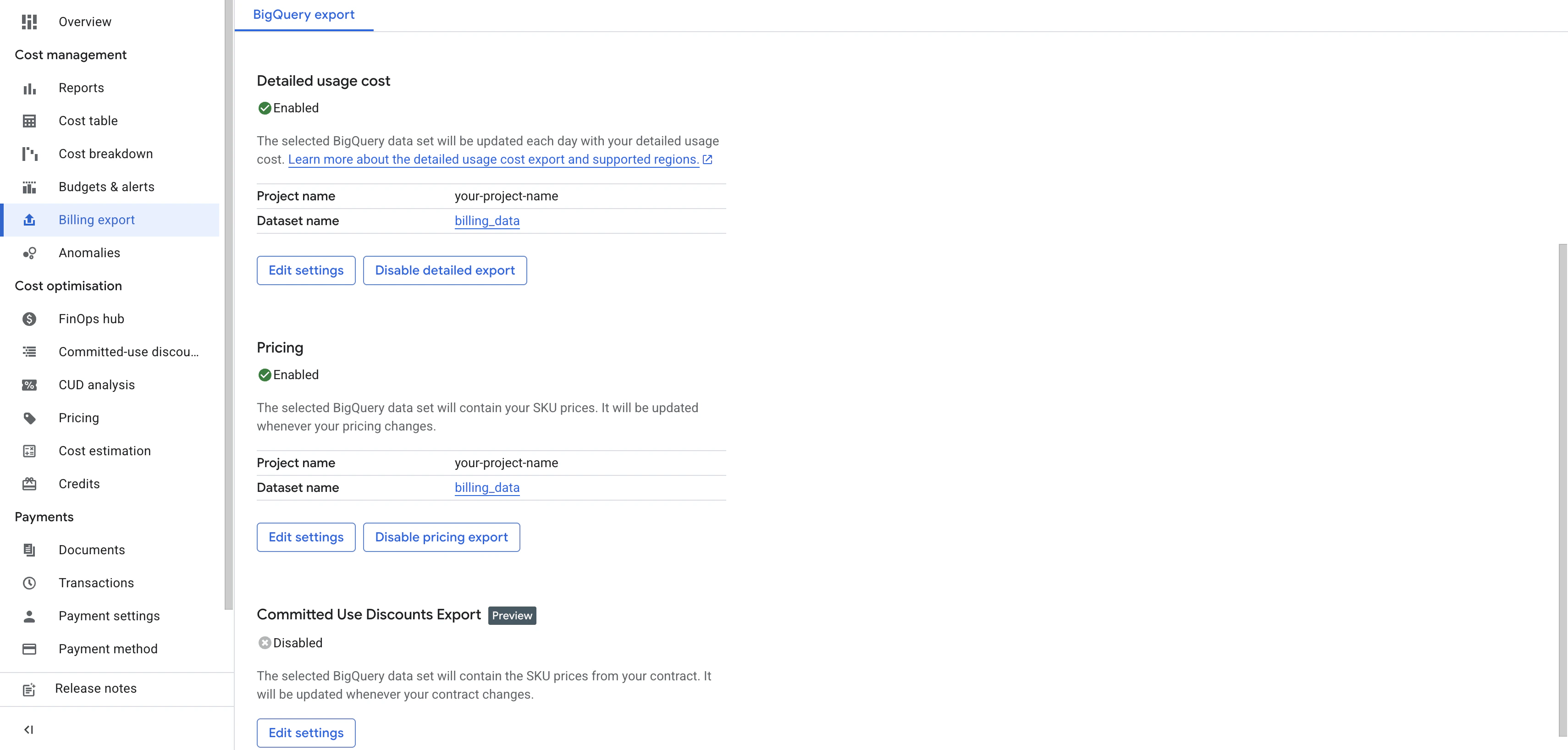 4. Enable both exports:
* **Detailed usage cost data**: Click **Edit settings** and configure
* **Pricing data**: Click **Edit settings** and configure
5. Configure your exports:
* Project: Select the project where you want to store billing data
* Dataset: Create or select a BigQuery dataset (for example, `billing export`)
* Enable both detailed usage cost data and pricing data export
6. Click **Save** for both exports
**Both exports required**: you need both **Detailed Billing Export** and **Price Export** enabled to create the FOCUS
view. The standard billing export alone isn't sufficient.
### 2. Create FOCUS view (recommended)
For better compatibility with multi-cloud analysis,
Google provides a FOCUS-compliant BigQuery view:
1. Wait 24-48 hours after enabling exports for data to populate
2. Follow one of these guides to create the FOCUS view:
* **Google's official guide**: [FOCUS BigQuery View guide](https://cloud.google.com/billing/docs/how-to/export-data-bigquery-tables#create-focus-view)
* **FinOps Foundation guide**: [Creating FOCUS Views in BigQuery](/images/oss/thin-ops/guides/gcp-focus-guide-v1.pdf) (comprehensive step-by-step)
3. Use the provided SQL template, replacing dataset paths with your actual ones
4. Save the view with a name like `gcp_billing_focus_v1`
### 3. Note your configuration
After setup, note these details for NarevAI configuration:
* Project ID: Where your billing data is stored
* Dataset ID: The BigQuery dataset name (for example, `billing export`)
* FOCUS view name: The name you gave your FOCUS view (for example, `gcp_billing_focus_v1`)
## Service account setup
### 1. Create service account
1. Go to **Identity and Access Management (IAM) & Admin** > **Service Accounts** in the Google Cloud Console
4. Enable both exports:
* **Detailed usage cost data**: Click **Edit settings** and configure
* **Pricing data**: Click **Edit settings** and configure
5. Configure your exports:
* Project: Select the project where you want to store billing data
* Dataset: Create or select a BigQuery dataset (for example, `billing export`)
* Enable both detailed usage cost data and pricing data export
6. Click **Save** for both exports
**Both exports required**: you need both **Detailed Billing Export** and **Price Export** enabled to create the FOCUS
view. The standard billing export alone isn't sufficient.
### 2. Create FOCUS view (recommended)
For better compatibility with multi-cloud analysis,
Google provides a FOCUS-compliant BigQuery view:
1. Wait 24-48 hours after enabling exports for data to populate
2. Follow one of these guides to create the FOCUS view:
* **Google's official guide**: [FOCUS BigQuery View guide](https://cloud.google.com/billing/docs/how-to/export-data-bigquery-tables#create-focus-view)
* **FinOps Foundation guide**: [Creating FOCUS Views in BigQuery](/images/oss/thin-ops/guides/gcp-focus-guide-v1.pdf) (comprehensive step-by-step)
3. Use the provided SQL template, replacing dataset paths with your actual ones
4. Save the view with a name like `gcp_billing_focus_v1`
### 3. Note your configuration
After setup, note these details for NarevAI configuration:
* Project ID: Where your billing data is stored
* Dataset ID: The BigQuery dataset name (for example, `billing export`)
* FOCUS view name: The name you gave your FOCUS view (for example, `gcp_billing_focus_v1`)
## Service account setup
### 1. Create service account
1. Go to **Identity and Access Management (IAM) & Admin** > **Service Accounts** in the Google Cloud Console
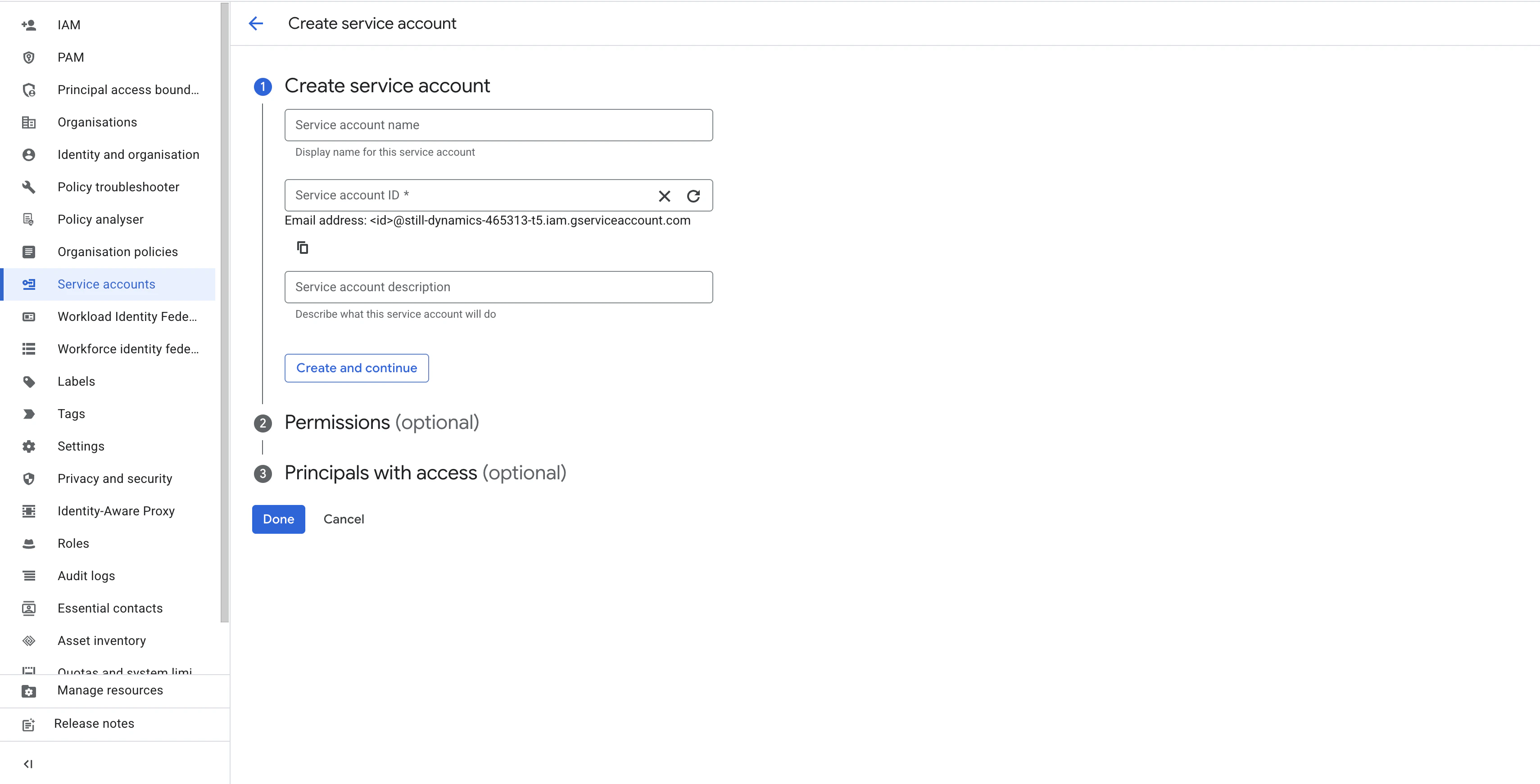 2. Click **Create Service Account**
3. Provide details:
* Username: `narevai-billing-reader`
* Description: `Service account for NarevAI billing analysis`
4. Click **Create and Continue**
### 2. Assign permissions
Assign the following roles to your service account:
* **BigQuery Data Viewer**: To read billing data from BigQuery
* **BigQuery Job User**: To execute queries
* **BigQuery Metadata Viewer**: To access dataset and table metadata
### 3. Create and download key
1. In the service accounts list, click your newly created service account
2. Go to the **Keys** tab
3. Click **Add Key** > **Create new key**
4. Select **JSON** format
5. Click **Create** and save the downloaded JSON file securely
## Adding GCP Provider in NarevAI
### Step 1: Navigate to Connect
1. In the NarevAI sidebar, under **Data Connections**, click **Connect**
2. You'll see the "Provider Integrations" page with available providers
2. Click **Create Service Account**
3. Provide details:
* Username: `narevai-billing-reader`
* Description: `Service account for NarevAI billing analysis`
4. Click **Create and Continue**
### 2. Assign permissions
Assign the following roles to your service account:
* **BigQuery Data Viewer**: To read billing data from BigQuery
* **BigQuery Job User**: To execute queries
* **BigQuery Metadata Viewer**: To access dataset and table metadata
### 3. Create and download key
1. In the service accounts list, click your newly created service account
2. Go to the **Keys** tab
3. Click **Add Key** > **Create new key**
4. Select **JSON** format
5. Click **Create** and save the downloaded JSON file securely
## Adding GCP Provider in NarevAI
### Step 1: Navigate to Connect
1. In the NarevAI sidebar, under **Data Connections**, click **Connect**
2. You'll see the "Provider Integrations" page with available providers
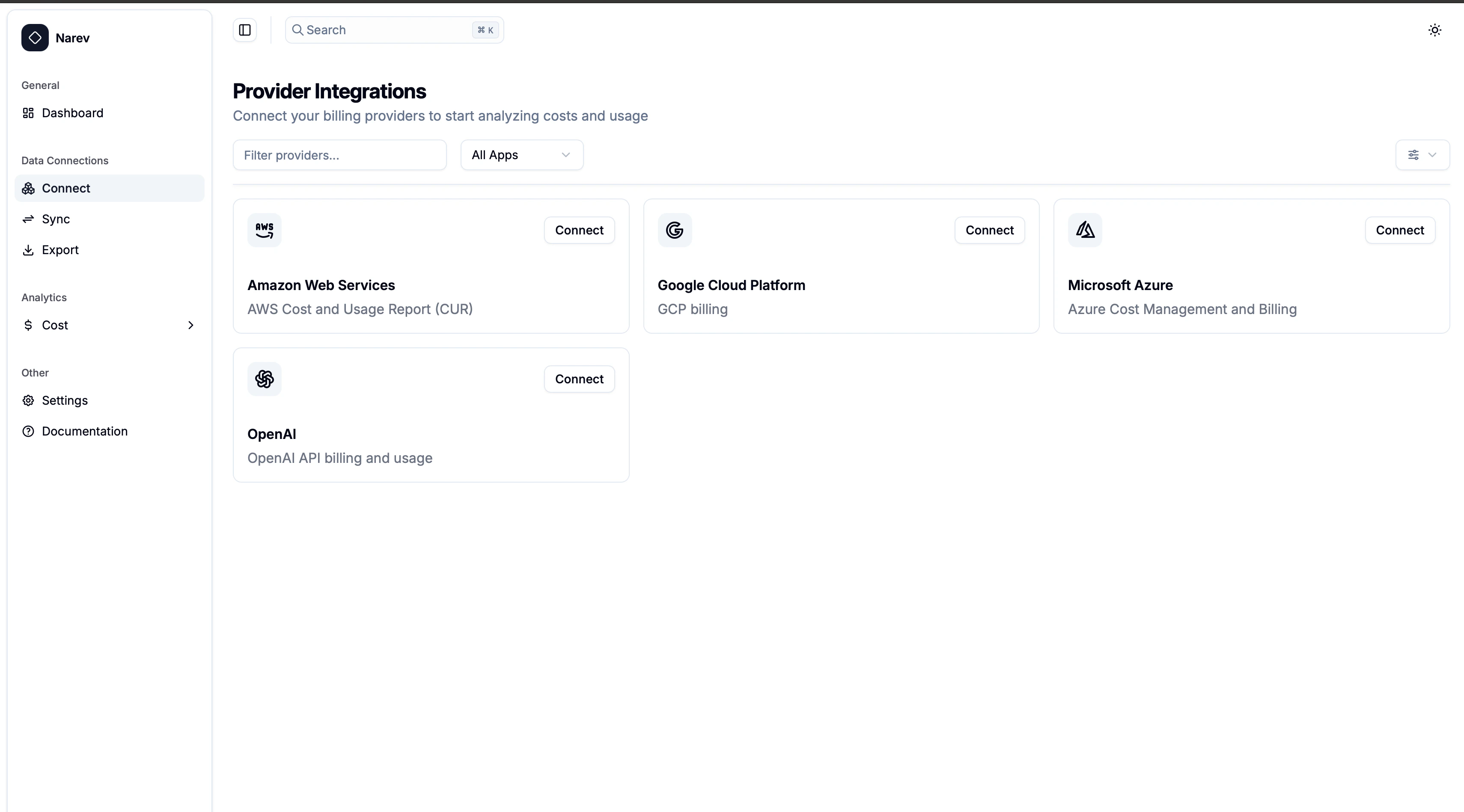 ### Step 2: Select GCP Provider
1. Find the **Google Cloud Platform** card in the provider grid
2. Click the **Connect** button on the GCP card
3. The GCP configuration dialog opens
### Step 2: Select GCP Provider
1. Find the **Google Cloud Platform** card in the provider grid
2. Click the **Connect** button on the GCP card
3. The GCP configuration dialog opens
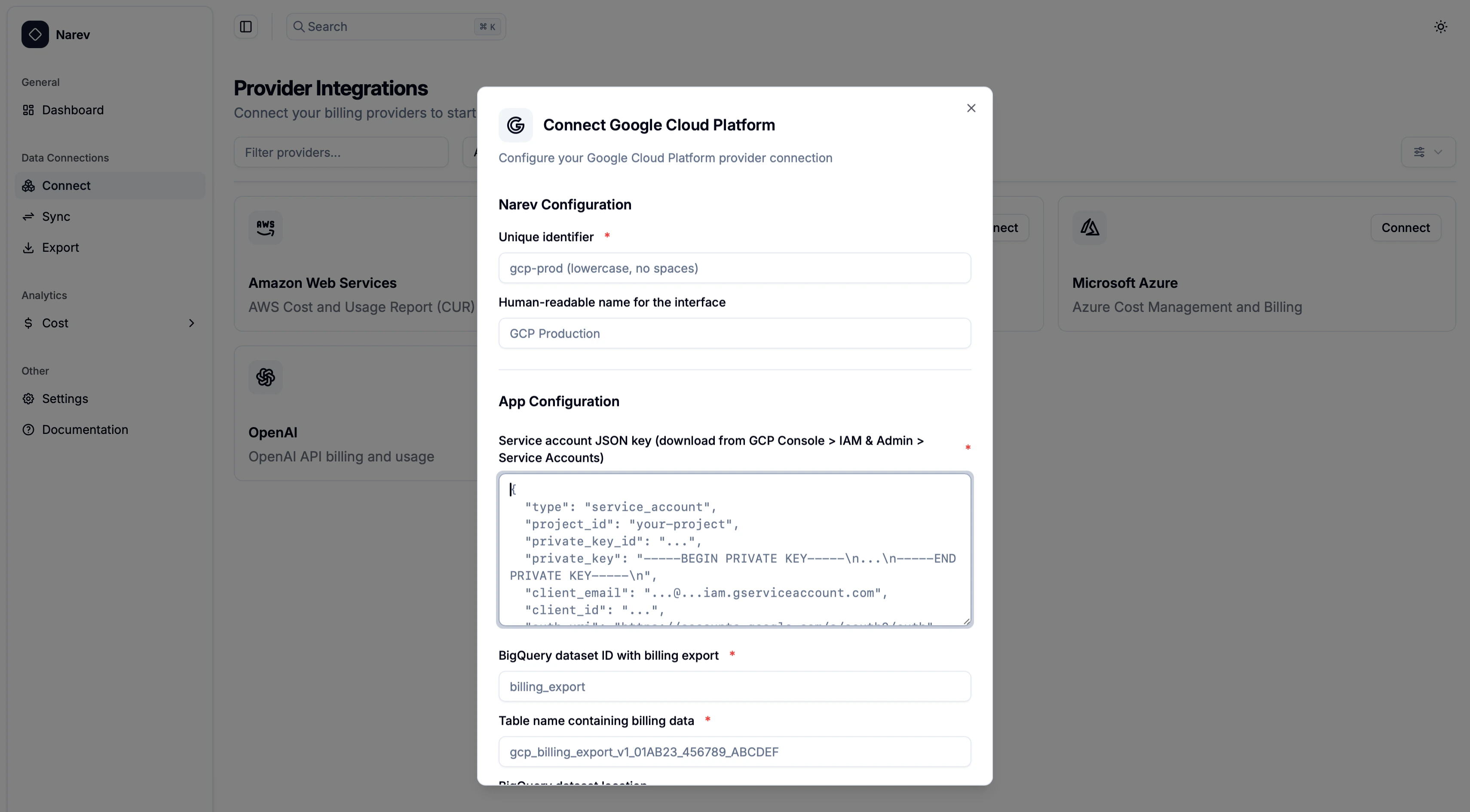 ### Step 3: Configure GCP Provider
#### Narev configuration
**Provider Name** ✅ *Required*
* Unique identifier (for example, `gcp-prod`, `company-gcp`)
* Format: lowercase letters, numbers, hyphens, underscores only
**Display Name** (Optional)
* Human-readable name (for example, `GCP Production`, `Company GCP`)
* Shown in the interface
#### App configuration - GCP credentials ✅ *Required*
**Service Account Credentials** ✅
* Service account JSON key from Google Cloud Console
* Input options:
* **Paste JSON**: Copy and paste the entire JSON content
* **Upload File**: Upload the downloaded `.json` file
* Must include fields like `type`, `project_id`, `private_key`, `client_email`
**Service account security**: the service account JSON file contains a private key. Store it securely and never share
it publicly.
#### Provider-specific configuration
**Dataset ID** ✅ *Required*
* BigQuery dataset with billing export (for example, `billing export`)
* Must match the dataset you configured in Google Cloud
**Table Name** ✅ *Required*
* FOCUS view name (for example, `gcp_billing_focus_v1`)
* Must match the FOCUS view you created in BigQuery
### Step 4: Connect Provider
1. Review all configuration settings
2. Click the **Connect** button
3. NarevAI tests the connection to your BigQuery dataset
4. If successful, NarevAI adds the provider and marks it as "Connected"
5. You can now sync billing data from this GCP account
**Connection Test includes:**
* Service account credentials validation
* BigQuery dataset access verification
* Table/view existence check
* Data query permissions test
## Configuration examples
### Basic setup
```text theme={null}
Provider Name: gcp-main
Display Name: Main GCP Account
Service Account JSON: {complete JSON object}
Dataset ID: billing export
Table Name: gcp_billing_focus_v1
Location: US
```
### Multi-Regional Setup
```text theme={null}
Provider Name: gcp-eu
Display Name: GCP European Operations
Service Account JSON: {complete JSON object}
Dataset ID: eu_billing export
Table Name: gcp_billing_focus_v1
Location: EU
```
### Custom View Name
```text theme={null}
Provider Name: gcp-prod
Display Name: GCP Production Environment
Service Account JSON: {complete JSON object}
Dataset ID: billing export
Table Name: my_custom_focus_view
Location: us-central1
```
## Service Account JSON Structure
Your service account JSON should look like this:
```json theme={null}
{
"type": "service_account",
"project_id": "your-project-id",
"private_key_id": "key-id",
"private_key": "-----BEGIN PRIVATE KEY-----\n...\n-----END PRIVATE KEY-----\n",
"client_email": "narevai-billing-reader@your-project.iam.gserviceaccount.com",
"client_id": "client-id",
"auth_uri": "https://accounts.google.com/o/oauth2/auth",
"token_uri": "https://oauth2.googleapis.com/token",
"auth_provider_x509_cert_url": "https://www.googleapis.com/oauth2/v1/certs",
"client_x509_cert_url": "https://www.googleapis.com/oauth2/v1/certs/..."
}
```
## Testing the Connection
After configuring your provider:
1. Click Test Connection before saving
2. The system will verify:
* Service account credentials validity
* BigQuery dataset access permissions
* Table existence and structure
* Query execution permissions
3. Successful test shows dataset details and row count
4. Failed test will show specific error messages to help troubleshoot
### Common Test Results
#### Success Response
```text theme={null}
Successfully connected to BigQuery
Project ID: your-project-id
Dataset ID: billing export
Table Name: gcp_billing_focus_v1
Location: US
Row Count: 150,432
Table Size: 245.7 MB
```
#### Dataset Not Found
```text theme={null}
Dataset 'billing export' not found in project 'your-project-id'
```
* Solution: Verify the dataset ID and ensure billing export is configured
#### Permission Denied
```text theme={null}
Permission denied - check service account permissions
```
* Solution: Ensure your service account has BigQuery Data Viewer and Job User roles
#### Authentication Failed
```text theme={null}
Authentication failed - check credentials
```
* Solution: Verify your service account JSON is complete and valid
## Supported Features
The GCP provider supports:
* ✅ BigQuery billing export data
* ✅ FOCUS format compatibility
* ✅ Detailed cost breakdown by service and resource
* ✅ Resource hierarchy analysis (organization/folder/project)
* ✅ Labels and tags for cost attribution
* ✅ Multi-regional dataset support
## Troubleshooting
### Service Account Issues
* Ensure the service account has the required BigQuery permissions
* Verify the JSON file is complete and contains all required fields
* Check that the service account email format is correct
### BigQuery Access Issues
* Confirm billing export is enabled and data is being generated
* Verify the dataset and table names match exactly (case-sensitive)
* Ensure the dataset location matches your configuration
### Data Export Problems
* Check if billing export is actively generating data (may take 24-48 hours initially)
* Verify your GCP project has billing enabled
* Confirm you have sufficient billing data for the time period
### Permission Errors
* BigQuery Data Viewer: Required to read billing data
* BigQuery Job User: Required to execute queries
* BigQuery Metadata Viewer: Required to access dataset information
### Authentication Failures
* Verify the service account JSON format is valid
* Check that the private key in the JSON is complete and properly formatted
* Ensure the service account hasn't been deleted or disabled
### Regional Configuration
* Verify the BigQuery dataset location matches your provider configuration
* Some features may not be available in all regions
* Cross-regional access may have additional latency
## Finding Your FOCUS View Name
To find your FOCUS view name in BigQuery:
1. Go to **BigQuery** in the Google Cloud Console
2. Navigate to your billing dataset
3. Look for your FOCUS view (typically named `gcp_billing_focus_v1` or similar)
4. Use this exact view name in your NarevAI provider configuration
**FOCUS View Required**: NarevAI requires a FOCUS-compliant BigQuery view for GCP billing data. You must create this
view using Google's provided SQL template before configuring the provider. Raw billing export tables are not
supported.
## Data Collection
Once configured, the GCP provider will collect:
* Usage metrics: Service usage, resource consumption, API calls
* Cost data: On-demand pricing, sustained use discounts, committed use discounts
* Resource information: Compute instances, storage usage, network traffic
* Project hierarchy: Organization, folder, and project-level cost attribution
* Labels and tags: Custom labels for cost allocation and analysis
* Time-series data: Daily cost and usage patterns
Data collection runs automatically based on your configured schedule and appears
in the NarevAI dashboard after the first successful sync.
GCP billing data is typically updated multiple times per day as usage occurs.
### Step 3: Configure GCP Provider
#### Narev configuration
**Provider Name** ✅ *Required*
* Unique identifier (for example, `gcp-prod`, `company-gcp`)
* Format: lowercase letters, numbers, hyphens, underscores only
**Display Name** (Optional)
* Human-readable name (for example, `GCP Production`, `Company GCP`)
* Shown in the interface
#### App configuration - GCP credentials ✅ *Required*
**Service Account Credentials** ✅
* Service account JSON key from Google Cloud Console
* Input options:
* **Paste JSON**: Copy and paste the entire JSON content
* **Upload File**: Upload the downloaded `.json` file
* Must include fields like `type`, `project_id`, `private_key`, `client_email`
**Service account security**: the service account JSON file contains a private key. Store it securely and never share
it publicly.
#### Provider-specific configuration
**Dataset ID** ✅ *Required*
* BigQuery dataset with billing export (for example, `billing export`)
* Must match the dataset you configured in Google Cloud
**Table Name** ✅ *Required*
* FOCUS view name (for example, `gcp_billing_focus_v1`)
* Must match the FOCUS view you created in BigQuery
### Step 4: Connect Provider
1. Review all configuration settings
2. Click the **Connect** button
3. NarevAI tests the connection to your BigQuery dataset
4. If successful, NarevAI adds the provider and marks it as "Connected"
5. You can now sync billing data from this GCP account
**Connection Test includes:**
* Service account credentials validation
* BigQuery dataset access verification
* Table/view existence check
* Data query permissions test
## Configuration examples
### Basic setup
```text theme={null}
Provider Name: gcp-main
Display Name: Main GCP Account
Service Account JSON: {complete JSON object}
Dataset ID: billing export
Table Name: gcp_billing_focus_v1
Location: US
```
### Multi-Regional Setup
```text theme={null}
Provider Name: gcp-eu
Display Name: GCP European Operations
Service Account JSON: {complete JSON object}
Dataset ID: eu_billing export
Table Name: gcp_billing_focus_v1
Location: EU
```
### Custom View Name
```text theme={null}
Provider Name: gcp-prod
Display Name: GCP Production Environment
Service Account JSON: {complete JSON object}
Dataset ID: billing export
Table Name: my_custom_focus_view
Location: us-central1
```
## Service Account JSON Structure
Your service account JSON should look like this:
```json theme={null}
{
"type": "service_account",
"project_id": "your-project-id",
"private_key_id": "key-id",
"private_key": "-----BEGIN PRIVATE KEY-----\n...\n-----END PRIVATE KEY-----\n",
"client_email": "narevai-billing-reader@your-project.iam.gserviceaccount.com",
"client_id": "client-id",
"auth_uri": "https://accounts.google.com/o/oauth2/auth",
"token_uri": "https://oauth2.googleapis.com/token",
"auth_provider_x509_cert_url": "https://www.googleapis.com/oauth2/v1/certs",
"client_x509_cert_url": "https://www.googleapis.com/oauth2/v1/certs/..."
}
```
## Testing the Connection
After configuring your provider:
1. Click Test Connection before saving
2. The system will verify:
* Service account credentials validity
* BigQuery dataset access permissions
* Table existence and structure
* Query execution permissions
3. Successful test shows dataset details and row count
4. Failed test will show specific error messages to help troubleshoot
### Common Test Results
#### Success Response
```text theme={null}
Successfully connected to BigQuery
Project ID: your-project-id
Dataset ID: billing export
Table Name: gcp_billing_focus_v1
Location: US
Row Count: 150,432
Table Size: 245.7 MB
```
#### Dataset Not Found
```text theme={null}
Dataset 'billing export' not found in project 'your-project-id'
```
* Solution: Verify the dataset ID and ensure billing export is configured
#### Permission Denied
```text theme={null}
Permission denied - check service account permissions
```
* Solution: Ensure your service account has BigQuery Data Viewer and Job User roles
#### Authentication Failed
```text theme={null}
Authentication failed - check credentials
```
* Solution: Verify your service account JSON is complete and valid
## Supported Features
The GCP provider supports:
* ✅ BigQuery billing export data
* ✅ FOCUS format compatibility
* ✅ Detailed cost breakdown by service and resource
* ✅ Resource hierarchy analysis (organization/folder/project)
* ✅ Labels and tags for cost attribution
* ✅ Multi-regional dataset support
## Troubleshooting
### Service Account Issues
* Ensure the service account has the required BigQuery permissions
* Verify the JSON file is complete and contains all required fields
* Check that the service account email format is correct
### BigQuery Access Issues
* Confirm billing export is enabled and data is being generated
* Verify the dataset and table names match exactly (case-sensitive)
* Ensure the dataset location matches your configuration
### Data Export Problems
* Check if billing export is actively generating data (may take 24-48 hours initially)
* Verify your GCP project has billing enabled
* Confirm you have sufficient billing data for the time period
### Permission Errors
* BigQuery Data Viewer: Required to read billing data
* BigQuery Job User: Required to execute queries
* BigQuery Metadata Viewer: Required to access dataset information
### Authentication Failures
* Verify the service account JSON format is valid
* Check that the private key in the JSON is complete and properly formatted
* Ensure the service account hasn't been deleted or disabled
### Regional Configuration
* Verify the BigQuery dataset location matches your provider configuration
* Some features may not be available in all regions
* Cross-regional access may have additional latency
## Finding Your FOCUS View Name
To find your FOCUS view name in BigQuery:
1. Go to **BigQuery** in the Google Cloud Console
2. Navigate to your billing dataset
3. Look for your FOCUS view (typically named `gcp_billing_focus_v1` or similar)
4. Use this exact view name in your NarevAI provider configuration
**FOCUS View Required**: NarevAI requires a FOCUS-compliant BigQuery view for GCP billing data. You must create this
view using Google's provided SQL template before configuring the provider. Raw billing export tables are not
supported.
## Data Collection
Once configured, the GCP provider will collect:
* Usage metrics: Service usage, resource consumption, API calls
* Cost data: On-demand pricing, sustained use discounts, committed use discounts
* Resource information: Compute instances, storage usage, network traffic
* Project hierarchy: Organization, folder, and project-level cost attribution
* Labels and tags: Custom labels for cost allocation and analysis
* Time-series data: Daily cost and usage patterns
Data collection runs automatically based on your configured schedule and appears
in the NarevAI dashboard after the first successful sync.
GCP billing data is typically updated multiple times per day as usage occurs.